Download BlueScreenView for Windows
Analyze Windows crash dumps and pinpoint the exact driver behind every Blue Screen of Death on your PC.
What Is BlueScreenView?
A lightweight crash dump analyzer that helps you find exactly which driver caused your Windows blue screen.
Your go-to BSOD diagnostic tool
BlueScreenView is a free Windows utility built by Nir Sofer at NirSoft. It reads the minidump files that Windows saves to C:WindowsMinidump after every Blue Screen of Death crash, then lays out the crash data in a simple, sortable table. Instead of staring at cryptic error codes or digging through Event Viewer logs, you get a clear breakdown of what went wrong and which driver file triggered it.
The program has been a staple for IT technicians and power users since its initial release. At just 83 KB for the 32-bit version, BlueScreenView runs as a standalone portable app with no installer and no registry changes. Drop it on a USB stick, plug it into a problem machine, and you have your crash history within seconds.
How it works
When you open BlueScreenView, it automatically scans the default minidump folder and populates a dual-pane interface. The top pane lists every crash dump file with its timestamp, bug check code (like DRIVER_IRQL_NOT_LESS_OR_EQUAL), and the suspected driver. Click any crash entry and the bottom pane shows all loaded drivers at the time of that crash, with the likely culprit highlighted in pink. That pink row is usually all you need to start troubleshooting.
You can also point it at dump files on a network share or from another computer entirely, which makes remote diagnosis straightforward. BlueScreenView supports both 32-bit and 64-bit crash dumps, and it runs on everything from Windows XP through Windows 11.
Who should use it
If your PC has crashed even once with a blue screen, this tool gives you answers that Windows itself does not surface easily. System administrators use BlueScreenView to audit crash patterns across multiple workstations. Hobbyists rely on it after overclocking or installing new hardware. Anyone troubleshooting driver conflicts or stability problems will find it faster than the built-in Windows Reliability Monitor or parsing WinDbg output by hand.
- Instantly identifies the driver behind each BSOD by scanning crash dump files
- Portable and tiny (83 KB) — runs from a USB drive with zero installation
- Dual-pane layout with pink highlighting pinpoints the faulty module at a glance
- Export crash reports to CSV, HTML, XML, or plain text for documentation
Ready to diagnose your crash dumps? Download BlueScreenView or jump to the getting started guide.
Key Features
BlueScreenView packs serious diagnostic power into an 83 KB portable executable. Here is what it does and why IT pros keep it in their toolkit.
Crash Dump Analysis
BlueScreenView reads minidump files from your C:WindowsMinidump folder and lays out every crash in a sortable table. Each row shows the dump filename, crash timestamp, Bug Check Code, Bug Check String, and the four associated parameters. You get a full timeline of system crashes without opening a single command prompt or installing WinDbg.
Faulty Driver Identification
The lower pane highlights suspect drivers in pink, making the culprit obvious at a glance. BlueScreenView traces crash stack addresses back to specific driver files, so you know whether nvlddmkm.sys, atikmdag.sys, or another module triggered your BSOD.
Dual-Pane Interface
The upper pane lists all crash events; the lower pane shows driver details for the selected crash. You can switch the lower pane between four display modes: All Drivers, Stack Drivers Only, a classic blue-screen recreation, and raw DumpChk output.
XP-Style BSOD Recreation
Select any crash dump and BlueScreenView recreates the original Blue Screen of Death as it appeared at the time of the crash. This mode pulls the actual error codes, stop parameters, and driver names directly from the dump file.
Export to Multiple Formats
BlueScreenView exports crash data to plain text, CSV, HTML, and XML. This makes it straightforward to attach crash reports to support tickets, paste data into spreadsheets for trend analysis, or share dump summaries with a colleague who does not have the tool installed. The HTML export produces a self-contained table that opens in any browser.
Command-Line Automation
Run BlueScreenView with command-line switches to auto-export crash data on a schedule. System administrators use this to build automated BSOD monitoring scripts that log crash events across multiple machines without manual intervention.
Remote Dump File Viewing
Point BlueScreenView at a network share or an external drive to analyze crash dumps from other machines. IT teams use this to troubleshoot remote workstations without physically sitting at the affected PC.
Google Search Integration
Right-click any crash entry and search Google for the Bug Check Code or driver name directly from BlueScreenView. Saves you from copying error codes by hand and speeds up the troubleshooting process.
Portable — No Installation
BlueScreenView runs straight from a folder or USB drive. No installer, no registry entries, no admin setup. Extract the ZIP, double-click the executable, and you are analyzing crashes within seconds.
Sortable Columns & Custom Layout
Click any column header to sort crashes by date, driver, or error code. Drag columns to rearrange them and toggle grid lines on or off. The layout persists between sessions, so you only need to configure your preferred view once.
All features included free in a single 83 KB download. Get BlueScreenView
System Requirements
BlueScreenView is built to run on almost any Windows machine. The tool uses minimal resources and needs no installation.
| Component | Minimum | Recommended |
|---|---|---|
| Operating System | Windows XP SP3 (32-bit or 64-bit) | Windows 10 or Windows 11 |
| Processor | Any x86 or x64 CPU | 1 GHz or faster, dual-core |
| RAM | 256 MB | 1 GB or more |
| Disk Space | Less than 1 MB (portable, ~83 KB for 32-bit) | 5 MB (with dump files cached) |
| Display | 800 x 600 resolution | 1280 x 720 or higher |
| Permissions | Standard user (read own dumps) | Administrator (access C:WindowsMinidump) |
| Internet | Not required | Optional (for Google search of error codes) |
BlueScreenView is a portable application. Just extract the ZIP and run the executable – no installer needed. Both 32-bit and 64-bit builds are available separately.
Download BlueScreenView
Get the latest version of BlueScreenView for your Windows PC. Both 32-bit and 64-bit builds are available as portable ZIP files.
BlueScreenView v1.55
Not sure which version to pick? If you are running a 64-bit version of Windows (most modern PCs), grab the 64-bit build. It reads both 32-bit and x64 crash dumps. The 32-bit version works on older systems running Windows XP or 32-bit editions of Vista and 7.
BlueScreenView also supports loading dump files from a network path or remote computer. For command-line automation, check the Getting Started section.
Need help after downloading? Visit our Getting Started guide for a step-by-step walkthrough.
Screenshots
See BlueScreenView in action — from crash dump analysis to driver identification.

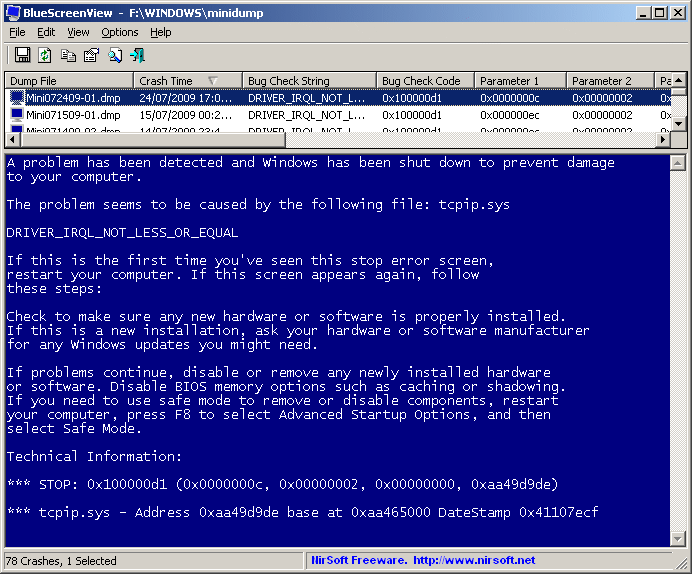

Click any screenshot to view full size
Getting Started with BlueScreenView
From download to your first crash analysis in under five minutes. Here is everything you need to know.
Downloading BlueScreenView
Head to our download section above to grab BlueScreenView v1.55. The download comes as a ZIP archive and the entire package is about 83 KB for the 32-bit version or roughly 146 KB for the 64-bit executable. Even on a slow connection, you will have it in seconds.
There are two versions to pick from. The 32-bit build runs on any Windows system from XP through Windows 11 and can read both 32-bit and 64-bit crash dumps. The 64-bit build is for 64-bit Windows only. If you are on Windows 10 or 11 (which are almost always 64-bit), go with the 64-bit version. Not sure? Open Settings, then System, then About, and check “System type.”
BlueScreenView is a portable application, meaning there is no .exe installer or .msi package. You download a ZIP file containing BlueScreenView.exe, a readme file, and a translation config file. No installation wizard, no registry changes, no Start Menu shortcuts created automatically. This makes it perfect for USB drives, IT toolkits, and machines where you do not have admin rights to install software.
Installation Walkthrough
Because BlueScreenView is portable, the “installation” is really just extracting a ZIP file. Here is the full walkthrough:
- Open the downloaded ZIP file. Windows can handle this natively. Double-click the .zip or right-click and choose “Extract All.”
- Pick a destination folder. Create a folder like
C:ToolsBlueScreenViewor drop it on your Desktop. The program writes its configuration to the same directory it runs from, so avoid extracting it toC:Program Fileswhere write permissions may be restricted. - Extract the contents. You will see three files:
BlueScreenView.exe(the main program),BlueScreenView.chm(help file), andreadme.txt. - Run BlueScreenView.exe. Double-click it. There is no setup wizard, no license agreement screen, and no “Next, Next, Finish” sequence. The program opens immediately.
If you want to install BlueScreenView system-wide with a command-line tool, you can also use winget:
This downloads the latest version and places it in your user directory automatically. You can also use Chocolatey: choco install bluescreenview.
BlueScreenView is Windows-only. It does not run on macOS or Linux natively. If you need to analyze Windows dump files from a non-Windows machine, you would need to copy the .dmp files to a Windows system (or a virtual machine) and run BlueScreenView there.
shell:startup (type that path into File Explorer). The program uses almost zero resources when idle.Initial Setup & Configuration
BlueScreenView has no first-run wizard and no registration screen. When you open it, the program scans C:WindowsMinidump automatically and displays any crash dumps it finds. If the upper pane is empty, it means your system either has no recorded crashes or minidump creation is disabled.
Enabling minidump files (if missing): Open Control Panel, go to System, click “Advanced system settings” on the left sidebar. Under Startup and Recovery, click Settings. In the “Write debugging information” dropdown, select “Small memory dump (256 KB).” Click OK. Windows will now create a minidump file in C:WindowsMinidump every time a BSOD occurs.
Key settings to check right away (all under the Options menu):
- Options > Advanced Options (Ctrl+O): This is the most important dialog. You can change the MiniDump folder if your dumps are stored elsewhere, load a single full memory dump (MEMORY.DMP), or point to a remote computer’s crash dumps via a UNC path like
RemotePCc$WindowsMinidump. - Options > Lower Pane Mode: Choose between “All Drivers” (shows every loaded driver at crash time), “Only Drivers Found In Stack” (highlights the likely culprits), “Blue Screen in XP Style” (recreates the classic blue screen text), and “DumpChk Output” (raw output from Microsoft’s DumpChk tool).
- View > Choose Columns: Add or remove columns in the upper pane. By default, it shows Dump File, Crash Time, Bug Check String, Bug Check Code, and Caused By Driver. You can add Parameter 1-4, Caused By Address, and more.
BlueScreenView.cfg file in the same folder as the executable. If you copy the entire folder to a USB drive, your preferences travel with it.Your First Crash Analysis
Let’s walk through analyzing a real crash dump with BlueScreenView. Say your PC blue-screened yesterday and you want to figure out which driver caused it.
Open BlueScreenView. The upper pane lists all crash dumps found in the default MiniDump folder. Each row represents one BSOD event. Look at the columns:
- Crash Time: When the crash happened. The most recent crash is typically at the top (click the column header to sort).
- Bug Check String: The BSOD error name, such as DRIVER_IRQL_NOT_LESS_OR_EQUAL, PAGE_FAULT_IN_NONPAGED_AREA, or SYSTEM_SERVICE_EXCEPTION.
- Caused By Driver: This is the single most useful column. It tells you which driver file BlueScreenView thinks is responsible for the crash.
Click on a crash entry in the upper pane. The lower pane changes to show all drivers that were loaded at the time of that crash. Drivers highlighted in pink were found in the crash stack, meaning they are prime suspects. If you see a file like nvlddmkm.sys highlighted in pink, that is your NVIDIA graphics driver. If it is atikmdag.sys, that is AMD’s graphics driver. System files like ntoskrnl.exe often appear in the stack but are rarely the actual cause.
Right-click the crash entry and select “Google Search – Bug Check” or “Google Search – Bug Check + Driver.” This opens your browser with a pre-built search query for that exact error and driver combination. It is the fastest way to find community fixes.
To save a crash report for sharing with tech support, go to File > Save Selected Items, or press Ctrl+S. You can export as a text file, CSV, HTML table, or XML.
Here are the keyboard shortcuts you will use most often:
| Shortcut | Action |
|---|---|
| Ctrl+O | Open Advanced Options (change dump folder, remote PC) |
| Ctrl+S | Save selected crash report |
| Ctrl+C | Copy selected crash data to clipboard |
| F7 | Lower pane: show all drivers |
| F8 | Lower pane: show only stack drivers |
| F9 | Lower pane: XP-style blue screen view |
| Ctrl+F | Find text in crash data |
| Ctrl+H | Open HTML report of all crashes |
Tips, Tricks & Best Practices
Analyze remote computers without leaving your desk. Open Advanced Options (Ctrl+O) and enter a UNC path like ServerNamec$WindowsMinidump. You can also create a text file listing multiple computer names (one per line) and load it through the “Load from all computers specified in the following file” option. This is particularly useful for IT administrators managing dozens of workstations.
Use command-line exports for automation. Run BlueScreenView from a batch script to generate reports without opening the GUI. For example:
This saves all crash data to a CSV file. You can combine it with /MiniDumpFolder to point to a specific folder and /sort "Crash Time" to sort by date.
Common beginner mistake: Blaming ntoskrnl.exe for every crash. The NT kernel shows up in nearly every crash stack because it is the core of Windows. Focus on third-party driver files (like .sys files from hardware vendors) highlighted in pink. Those are the real troublemakers.
Hidden features most people miss:
- Press F9 to see a pixel-perfect recreation of the old XP-era blue screen for each crash, complete with the original error text.
- Drag column headers to rearrange them. Right-click the header row and select “Choose Columns” to add the Bug Check parameters, which you can paste directly into Microsoft’s documentation lookup.
- The DumpChk output mode (under Options > Lower Pane Mode) gives you the same raw data that Microsoft’s official DumpChk.exe utility produces, but you don’t need to install the Windows Debugging Tools.
BlueScreenView v1.55 has been stable since its last update, and NirSoft utilities generally do not require updates unless a new Windows version changes how dump files are structured. You can check for new versions at the official NirSoft site. For community help, search Reddit’s r/techsupport or r/WindowsHelp, or browse the NirSoft forum at forums.nirsoft.net.
Ready to find out what is crashing your PC? Download BlueScreenView and run your first analysis today.
Frequently Asked Questions
Answers to the most common questions about downloading, using, and troubleshooting BlueScreenView on Windows.
Is BlueScreenView safe to download and use?
Yes, BlueScreenView is completely safe. It is developed by Nir Sofer under the NirSoft brand, one of the most respected independent Windows utility developers since 2001. The tool has been recommended by Microsoft MVPs, BleepingComputer editors, and IT professionals worldwide for over a decade.
The official BlueScreenView download is a small ZIP file (approximately 83 KB for 32-bit, 146 KB for 64-bit) that contains only the executable and a readme file. It does not install any background services, browser toolbars, or bundled software. Because it is a portable application, it writes nothing to your Windows registry and makes zero changes to your system files. The tool only reads existing crash dump files from C:\Windows\Minidump — it never modifies or deletes them.
- No installation required — extract and run directly
- No internet connection needed during operation
- Does not require elevated privileges for basic usage (admin needed only for accessing system dump folders)
- Source behavior is fully documented on the official NirSoft page
Pro tip: Some antivirus programs flag NirSoft utilities as potentially unwanted programs (PUPs) because of the command-line export features. These are false positives. You can verify the download hash against the values posted on the NirSoft website.
Download BlueScreenView from our verified link on the download section to ensure you get the authentic file.
Is BlueScreenView free from malware and spyware?
BlueScreenView is 100% free from malware, spyware, and adware. NirSoft utilities have been scanned and verified by major security vendors for years, and the official distribution has never contained any malicious code.
The entire application is a single executable file (BlueScreenView.exe) under 150 KB. There are no hidden DLLs, no phone-home connections, and no data collection of any kind. BlueScreenView operates entirely offline — it reads local minidump files on your hard drive and displays the crash information in a simple table view. It never transmits crash data, system information, or personal files over the internet.
- No telemetry or analytics built into the application
- No auto-update mechanism that contacts external servers
- No advertising, pop-ups, or upsell prompts
- Regularly scanned by VirusTotal with consistent clean results from 60+ engines
Pro tip: Always download from the official NirSoft website or a trusted mirror. Third-party download sites sometimes repackage NirSoft tools with bundled installers that do contain adware. If your download is larger than 200 KB, it is probably a repackaged version.
See our features overview for details on how BlueScreenView processes crash data locally.
Where is the official safe download for BlueScreenView?
The official download for BlueScreenView is hosted on Nir Sofer’s NirSoft website at nirsoft.net. Our download section links directly to the authentic BlueScreenView v1.55 files from the official source.
NirSoft distributes BlueScreenView in two variants: a 32-bit version (bluescreenview.zip, approximately 83 KB) and a 64-bit version (bluescreenview-x64.zip, approximately 146 KB). Both are standard ZIP archives containing the executable, a help file, and a readme. There is no separate installer — you simply extract the ZIP and run BlueScreenView.exe directly.
- Use the 64-bit version if you run Windows 10 or 11 on modern hardware (most users)
- Use the 32-bit version only on older Windows XP/Vista/7 machines with 32-bit processors
- Both versions read both 32-bit and 64-bit crash dump files regardless of which version you run
Pro tip: Avoid sites like Softonic, CNET Download, or FileHorse for NirSoft tools. While the software itself may be legitimate, those sites often wrap it in custom installers that bundle unwanted programs. Stick to the direct ZIP download.
Head to our download page for direct links to both the 32-bit and 64-bit versions.
Does BlueScreenView work on Windows 11?
Yes, BlueScreenView v1.55 works on Windows 11 without any issues. The tool supports every Windows version from XP through Windows 11, including both 32-bit and 64-bit editions. Thousands of users on Reddit’s r/techsupport community regularly use BlueScreenView on Windows 11 to diagnose BSOD crashes.
Windows 11 stores minidump files in the same location as previous versions: C:\Windows\Minidump. BlueScreenView automatically scans this folder on launch and displays all available crash dumps. The crash dump format has remained consistent across Windows versions, so BlueScreenView reads Windows 11 dumps just as accurately as Windows 7 or 10 dumps. The bug check codes, driver information, and stack trace data are all parsed correctly.
- Compatible with Windows 11 versions 21H2, 22H2, 23H2, and 24H2
- Works on both Intel and AMD systems running Windows 11
- Supports ARM64 crash dump analysis when run on x64 systems
- No known compatibility issues with Windows 11 security features like HVCI or Secure Boot
Pro tip: If BlueScreenView shows no crash dumps on Windows 11, the most likely reason is that Windows is not configured to save minidump files. Go to Settings > System > About > Advanced system settings > Startup and Recovery > Settings, then set “Write debugging information” to “Small memory dump (256 KB)” and confirm the dump file folder is %SystemRoot%\Minidump.
Check the system requirements section for the full list of supported operating systems.
What are the minimum system requirements for BlueScreenView?
BlueScreenView has extremely low system requirements. It runs on any Windows PC from Windows XP onward, needs less than 5 MB of RAM during operation, and the application itself is under 150 KB in size.
Because BlueScreenView is a lightweight diagnostic utility that reads small minidump files (typically 256 KB to 1 MB each), it places almost no load on your CPU, RAM, or disk. Even a 15-year-old laptop running Windows XP with 512 MB of RAM can run BlueScreenView without slowdown. The tool loads crash dump data into memory as you select each dump, so memory usage stays flat regardless of how many dumps are listed. On a modern Windows 11 machine, you will barely notice it running.
- OS: Windows XP, Vista, 7, 8, 8.1, 10, or 11 (32-bit or 64-bit)
- RAM: Under 5 MB working set (any system with 256 MB+ total RAM is fine)
- Disk: Under 200 KB for the application files
- CPU: Any x86 or x64 processor from the last 20 years
- Permissions: Standard user for analyzing pre-copied dumps; Administrator for reading
C:\Windows\Minidumpdirectly
Pro tip: Because BlueScreenView is so lightweight, keep a copy on a USB flash drive. When a friend or coworker has BSOD problems, plug in the USB, run BlueScreenView.exe directly from it, and diagnose the crash on the spot — no installation needed.
See the system requirements table for detailed specifications.
Does BlueScreenView work on macOS or Linux?
No, BlueScreenView is a Windows-only application. It runs natively on Windows XP through Windows 11 and does not have macOS or Linux versions. This is by design — BlueScreenView reads Windows minidump files (.dmp), which are produced exclusively by the Windows kernel during BSOD crashes.
macOS and Linux have their own crash reporting systems (crash logs on macOS, kernel oops/panic logs on Linux) that use completely different formats. BlueScreenView cannot read these formats, and there would be no practical reason to run it on a non-Windows system since BSODs are a Windows-specific phenomenon. However, if you need to analyze Windows crash dumps on a non-Windows machine, there are workarounds available.
- Run BlueScreenView inside a Windows virtual machine (VirtualBox, VMware, or Parallels on macOS)
- Use Wine on Linux to run BlueScreenView — multiple users report it works under Wine 5.0+
- Copy the minidump files from the Windows machine to a USB drive and analyze them on any other Windows PC
Pro tip: If you manage mixed-OS environments, use the command-line export feature (BlueScreenView.exe /shtml report.html /MiniDumpFolder "path") on a Windows machine, then view the generated HTML report on any OS with a web browser.
For more on BlueScreenView’s platform support, visit the features section.
Is BlueScreenView completely free to download and use?
Yes, BlueScreenView is completely free. There is no paid version, no premium tier, no trial period, and no feature restrictions. Every function — including crash analysis, export, command-line automation, and remote dump viewing — is available at no cost.
Nir Sofer has been releasing free Windows utilities under the NirSoft brand since 2001, and BlueScreenView follows the same freeware model as his other 200+ tools. The software is free for both personal and commercial use. System administrators can deploy it across enterprise networks without purchasing licenses. IT service providers can use it on client machines without any legal restrictions. There has never been a paid or “Pro” version of BlueScreenView.
- Free for personal, commercial, and educational use
- No registration, activation key, or account required
- No ads, donations requests, or upgrade prompts in the application
- All features unlocked from the first run, permanently
Pro tip: While BlueScreenView itself is free, be cautious of third-party websites that offer “BlueScreenView Pro” or charge money for the download. These are scam sites redistributing the free tool with bundled adware. The authentic version is always free.
Download the full-featured free version from our download section.
What is the difference between BlueScreenView free and paid versions?
There is no difference because there is no paid version. BlueScreenView exists only as a single, free release. Any website claiming to sell a “premium” or “pro” edition of BlueScreenView is misleading you.
NirSoft operates on a straightforward freeware model. Nir Sofer develops all utilities independently and distributes them free of charge. The revenue model is based on advertising on the NirSoft website, not software sales. BlueScreenView v1.55, the latest version released, includes every feature the tool has ever offered: multi-dump scanning, four lower-pane display modes, CSV/HTML/XML/text export, command-line batch processing, remote network dump analysis, and Google search integration for bug check codes.
- v1.55 is the complete and final feature set — nothing is held back
- Command-line export works identically to GUI export
- No “unlock code” or license key system exists
- The tool has been stable since its last update with no ongoing development costs
Pro tip: If you want more advanced dump analysis beyond what BlueScreenView offers (such as full kernel debugging), Microsoft’s WinDbg is also free. BlueScreenView is the faster, simpler option for identifying faulty drivers, while WinDbg provides deeper stack trace analysis for complex crashes.
See the features section for a full breakdown of what BlueScreenView includes.
How do I download and install BlueScreenView step by step?
BlueScreenView does not require installation. You download a ZIP file, extract it, and run the executable directly. The entire process takes under 30 seconds.
Because BlueScreenView is a portable application, there is no installer wizard, no setup.exe, and no “Next-Next-Finish” process. You get a clean ZIP archive containing BlueScreenView.exe (the main program), BlueScreenView.chm (the help file), and a readme text file. This portable design means you can run BlueScreenView from any folder, including a USB drive, without leaving traces on the host system.
- Visit the download section and click the download link for your system (64-bit for modern PCs, 32-bit for legacy systems)
- Save the ZIP file (bluescreenview-x64.zip, approximately 146 KB) to your Desktop or Downloads folder
- Right-click the ZIP file and select “Extract All” (or use 7-Zip/WinRAR)
- Open the extracted folder and double-click BlueScreenView.exe
- If Windows SmartScreen shows a warning, click “More info” then “Run anyway” — this is normal for unsigned portable tools
- BlueScreenView opens and automatically scans
C:\Windows\Minidumpfor crash dumps
Pro tip: Create a dedicated folder like C:\Tools\BlueScreenView for your NirSoft utilities. This keeps them organized and makes it easy to add the folder to your PATH environment variable for command-line access.
For a more detailed walkthrough, check the Getting Started guide.
BlueScreenView portable vs installer – which version should I choose?
BlueScreenView only comes as a portable application. There is no traditional installer version. Every download from NirSoft is a portable ZIP file that you extract and run without installation.
This portable-only approach is one of BlueScreenView’s strengths. IT professionals and system administrators prefer portable tools because they can be carried on a USB drive and run on any Windows machine without modifying the system. The 32-bit ZIP is about 83 KB and the 64-bit ZIP is about 146 KB, so the entire application fits on virtually any storage medium. BlueScreenView saves its configuration in a .cfg file in the same directory as the executable, not in the Windows registry.
- No registry entries created or modified
- No files placed in Program Files, AppData, or System32
- Configuration stored in
BlueScreenView.cfgalongside the .exe - To “uninstall,” simply delete the folder — nothing else to clean up
- Can run from USB drives, network shares, or cloud-synced folders
Pro tip: Some third-party sites offer an “installer” version of BlueScreenView. These are unofficial wrappers that add the tool to your Start Menu and sometimes bundle additional software. Always use the official portable ZIP from NirSoft for the cleanest experience.
Download the portable ZIP directly from our download section.
Why does BlueScreenView show no crash dumps even after a BSOD?
The most common reason BlueScreenView shows an empty list after a BSOD is that Windows is not configured to save minidump files. By default, some Windows installations — especially clean installs of Windows 10 and 11 — do not enable small memory dump creation.
When a BSOD occurs, Windows writes crash data to a dump file only if the “Write debugging information” setting is configured in Startup and Recovery. If this is set to “(none)” or if the Minidump folder does not exist, no .dmp files are created and BlueScreenView has nothing to read. Another common cause is insufficient disk space on the C: drive, which prevents Windows from writing the dump file. On rare occasions, the BSOD may occur so early in the boot process that the dump infrastructure is not yet initialized.
- Right-click “This PC” on the Desktop and select “Properties”
- Click “Advanced system settings” on the left panel
- Under “Startup and Recovery,” click “Settings”
- Set “Write debugging information” to “Small memory dump (256 KB)”
- Confirm the dump file folder is
%SystemRoot%\Minidump - Click OK and restart your PC — the next BSOD will generate a dump file
Pro tip: You can also check if minidumps exist manually by navigating to C:\Windows\Minidump in File Explorer. If the folder is empty or missing, that confirms the configuration issue. If dump files exist but BlueScreenView still shows nothing, open Advanced Options (Ctrl+O) and verify the folder path is correct.
See the Getting Started guide for detailed configuration steps.
How to fix BlueScreenView not opening or crashing on startup?
BlueScreenView failing to open is rare but usually caused by antivirus interference, corrupted downloads, or running the wrong architecture version. The fix is straightforward in each case.
Some antivirus products (particularly Avast, AVG, and Kaspersky) quarantine NirSoft tools because they flag the command-line data export capabilities as “potentially unwanted.” When this happens, the .exe is silently blocked or deleted before it can launch. Another cause is downloading the 32-bit version on a 64-bit system where the Minidump folder has restricted access permissions. Corrupted ZIP downloads can also result in a broken executable that crashes immediately.
- Check your antivirus quarantine or exclusion list — add BlueScreenView.exe as an exception if it was flagged
- Re-download the ZIP file from our download section and verify the file size matches (83 KB for 32-bit, 146 KB for 64-bit)
- Right-click BlueScreenView.exe, select Properties, and check “Unblock” at the bottom of the General tab if present
- Try running as Administrator: right-click the .exe and select “Run as administrator”
- If on a 64-bit system, make sure you downloaded the 64-bit version (bluescreenview-x64.zip)
Pro tip: If BlueScreenView opens but immediately closes, it may be trying to scan a Minidump folder it cannot access. Launch it from the command line with BlueScreenView.exe /MiniDumpFolder "C:\Users\YourName\Desktop" pointing to an accessible folder to confirm the application runs. Then fix permissions on C:\Windows\Minidump.
Check our system requirements to verify you have the right version for your OS.
BlueScreenView shows ntoskrnl.exe as the crash cause – what does this mean?
When BlueScreenView lists ntoskrnl.exe as the “Caused By Driver,” it usually does not mean the Windows kernel itself is faulty. ntoskrnl.exe is the NT kernel, and it appears because the crash occurred while the kernel was executing code on behalf of another driver. The real culprit is typically a third-party driver that triggered an exception the kernel could not handle.
This is the single most common source of confusion among BlueScreenView users. Reddit’s r/techsupport forum sees this question daily. The key to finding the actual faulty driver is to look at the lower pane of BlueScreenView, specifically in “Only Drivers Found In Stack” mode. Drivers highlighted in pink are the ones that were in the call stack at the time of the crash. A third-party driver (like nvlddmkm.sys for NVIDIA GPUs or atikmdag.sys for AMD GPUs) highlighted in pink is almost always the real cause.
- Click on the crash dump entry in the upper pane
- In the lower pane, switch to View > “Only Drivers Found In Stack” (or press F7)
- Look for pink-highlighted rows — these are the drivers in the crash stack
- Identify any non-Microsoft driver in the pink list (check the “Company” column)
- Update or reinstall that driver using DDU (Display Driver Uninstaller) for GPU drivers, or download the latest version from the hardware manufacturer
Pro tip: If multiple crashes all show different ntoskrnl.exe bug check codes (like PAGE_FAULT_IN_NONPAGED_AREA, IRQL_NOT_LESS_OR_EQUAL) with no consistent third-party driver, this often points to failing RAM. Run Windows Memory Diagnostic or MemTest86 to test your memory modules.
Learn more about interpreting crash data in our Getting Started guide.
How to update BlueScreenView to the latest version?
BlueScreenView v1.55 is the latest and final version. Nir Sofer released this version and has not issued further updates because the tool is feature-complete and stable. There is no auto-update mechanism built into the application.
Since BlueScreenView is a portable tool, “updating” simply means downloading the new ZIP and replacing the old executable with the new one. However, as v1.55 has been the current version for several years and remains fully functional on Windows 11, there is no update to apply. The minidump file format used by Windows has not changed in ways that would break BlueScreenView’s parsing logic, so the tool continues to work correctly on the newest Windows releases.
- Current version: v1.55 (latest available)
- No auto-updater or update check feature exists in the app
- To check for future releases, visit the official NirSoft BlueScreenView page periodically
- If you have an older version (v1.50 or below), download v1.55 from our download section and replace the old .exe
Pro tip: You can verify your current version by opening BlueScreenView and clicking Help > About. If it shows version 1.55, you are running the latest release. Your configuration file (BlueScreenView.cfg) is preserved when you replace the executable, so your settings carry over.
Get the latest version from our download page.
BlueScreenView vs WhoCrashed – which BSOD analyzer is better?
BlueScreenView and WhoCrashed serve similar purposes but target different users. BlueScreenView is better for technically proficient users who want raw data fast, while WhoCrashed provides plain-English explanations better suited for beginners.
BlueScreenView displays crash data in a sortable table format, showing bug check codes, parameters, driver names, and memory addresses directly. It highlights suspect drivers in pink and lets you switch between four different lower-pane views. WhoCrashed, developed by Resplendence Software, generates automated crash reports with descriptions like “This was probably caused by the following module: nvlddmkm.sys (NVIDIA driver)” and sometimes suggests remediation steps. WhoCrashed has a free Home edition and a paid Professional edition ($29.95) with additional features like kernel dump analysis.
- Speed: BlueScreenView loads instantly (portable, under 150 KB); WhoCrashed requires installation (~15 MB) and takes longer to generate reports
- Detail: BlueScreenView shows more raw data (all loaded drivers, addresses, parameters); WhoCrashed summarizes and interprets
- Export: BlueScreenView exports to CSV/HTML/XML/text with command-line support; WhoCrashed generates formatted reports
- Price: BlueScreenView is fully free; WhoCrashed Home is free but Pro costs $29.95
- Remote analysis: BlueScreenView supports network paths (\\\\computer\\share); WhoCrashed Pro has remote analysis
Pro tip: Many IT professionals use both tools together. Run BlueScreenView first for quick identification of the faulty driver, then use WhoCrashed if you need a plain-language explanation to share with a non-technical client or manager.
See the full feature comparison to understand BlueScreenView’s technical capabilities.
BlueScreenView vs WinDbg – when should I use each tool?
Use BlueScreenView for quick driver identification from BSOD crashes. Use WinDbg when you need deep kernel-level debugging with full stack traces, symbol resolution, and source-level analysis. BlueScreenView is a 30-second tool; WinDbg is a full debugging environment.
BlueScreenView reads the minidump header and driver list, then presents it in a simple table. You can identify the faulty driver in under a minute with no configuration. WinDbg (Windows Debugger), Microsoft’s official debugging tool, requires downloading debug symbols, setting up symbol paths, and running commands like !analyze -v to get detailed analysis. WinDbg reveals much more: exact faulting instruction addresses, full call stacks with function names, thread states, and memory pool data. This depth is necessary for driver developers or when BlueScreenView’s quick analysis is not specific enough.
- Learning curve: BlueScreenView requires zero training; WinDbg requires significant command-line debugging knowledge
- Setup time: BlueScreenView runs in seconds; WinDbg needs symbol server configuration (10-15 minutes first time)
- Analysis depth: BlueScreenView shows driver-level data; WinDbg shows instruction-level data
- Best for: BlueScreenView for home users and first-pass analysis; WinDbg for developers and kernel debugging
Pro tip: A practical workflow is to start with BlueScreenView to identify the suspect driver, then open the same dump in WinDbg only if you need deeper analysis. Run !analyze -v in WinDbg to get the verbose automated analysis that often identifies the exact function call that triggered the crash.
Learn how to get started with BlueScreenView in our Getting Started section.
What command-line options does BlueScreenView support?
BlueScreenView supports a full set of command-line parameters for automated crash dump analysis and batch export. These options let you scan specific folders, generate reports in multiple formats, and integrate BlueScreenView into scripts or monitoring systems without opening the GUI.
The command-line interface was added in version 1.10 and is particularly useful for system administrators who manage multiple machines. You can point BlueScreenView at any folder containing .dmp files, export the crash list to CSV, HTML, XML, or plain text, and control sorting and display modes — all from a batch file or PowerShell script. The output files are clean and parseable, making them suitable for log aggregation tools.
/MiniDumpFolder "C:\path"— scan a custom folder instead of the default Minidump location/shtml "report.html"— export crash list as an HTML table/scomma "report.csv"— export as CSV for spreadsheet analysis/sxml "report.xml"— export as XML for automated processing/stab "report.txt"— export as tab-delimited text/sort "~Crash Time"— sort by column (~ prefix for descending order)/LoadFrom 3 /SingleDumpFile "file.dmp"— analyze a single dump file/LowerPaneMode 2— set lower pane to show only stack drivers
Pro tip: Combine command-line options for automated reporting: BlueScreenView.exe /MiniDumpFolder "\\\\server\\c$\\Windows\\Minidump" /shtml "\\\\reports\\server-crashes.html" /sort "~Crash Time". Schedule this as a Windows Task Scheduler job to generate daily crash reports from remote machines.
See the features section for more on BlueScreenView’s automation capabilities.
Can BlueScreenView analyze crash dumps from remote or network computers?
Yes, BlueScreenView can analyze crash dumps from any computer on your network. You can point it at a remote machine’s Minidump folder using a UNC network path, or copy dump files to a local folder and scan them there.
To analyze a remote computer’s crashes, you need network access to the target machine’s administrative share or a shared folder containing the dump files. BlueScreenView reads the remote .dmp files over the network just as it would read local files. This feature is invaluable for IT administrators managing multiple workstations or servers. You can also create a text file listing multiple computer names or IP addresses, and BlueScreenView will scan all of them in sequence using the /ComputersFile parameter.
- Open BlueScreenView and press Ctrl+O (or go to Options > Advanced Options)
- Select “Load MiniDump files from the following MiniDump folder”
- Enter the network path:
\\ComputerName\c$\Windows\Minidump - Click OK — BlueScreenView scans the remote folder and displays all crash dumps
- Alternatively, use
/ComputersFile "machines.txt"on the command line with a text file listing one hostname per line
Pro tip: For large networks, create a batch script that iterates through machine names and exports a separate HTML report for each: for /f %m in (machines.txt) do BlueScreenView.exe /MiniDumpFolder "\\%m\c$\Windows\Minidump" /shtml "reports\%m.html". This gives you a crash report dashboard for your entire fleet.
Explore all analysis options in our features overview.
How do I uninstall BlueScreenView completely?
To uninstall BlueScreenView, simply delete the folder containing BlueScreenView.exe. Because it is a portable application, there is nothing else to remove — no registry entries, no Start Menu shortcuts, no AppData files, no Windows services.
BlueScreenView stores all its settings in a single file called BlueScreenView.cfg in the same directory as the executable. When you delete the folder, this configuration file goes with it. There are no leftover files anywhere else on your system. This is one of the major advantages of portable applications over traditional installed software. Unlike programs installed through a setup wizard, BlueScreenView does not scatter files across Program Files, ProgramData, AppData, or the Windows registry.
- Close BlueScreenView if it is currently running
- Navigate to the folder where you extracted BlueScreenView (for example,
C:\Tools\BlueScreenView) - Delete the entire folder (contains BlueScreenView.exe, BlueScreenView.chm, BlueScreenView.cfg, and the readme)
- Empty the Recycle Bin if you want to free the disk space (under 200 KB total)
Pro tip: If you ran BlueScreenView from a USB drive, simply unplug the drive. If you pinned BlueScreenView to the taskbar or created a desktop shortcut manually, delete those shortcuts as well. BlueScreenView never creates these automatically.
If you want to reinstall later, just download a fresh copy from our download section.
Does BlueScreenView work offline without an internet connection?
Yes, BlueScreenView works completely offline. It does not require an internet connection for any of its functions. The tool reads crash dump files stored locally on your hard drive and processes everything on your machine without contacting any external server.
This offline capability makes BlueScreenView ideal for diagnosing crashes on air-gapped systems, machines in secure environments, or computers where the BSOD has disrupted network connectivity. The only optional feature that uses the internet is the “Google Search” function in the right-click context menu, which opens your browser to search for a bug check code. Even this feature is just a convenience shortcut — it does not send data to any server, it simply constructs a Google search URL and opens it in your default browser.
- All crash analysis performed locally — no cloud processing
- No license validation or phone-home check on startup
- Export features (CSV, HTML, XML) work entirely offline
- Can be carried on a USB drive and used on machines with no internet
- The Google Search shortcut is the only feature that opens a browser, and it is completely optional
Pro tip: For truly isolated environments, pre-download the NirSoft help page for common BSOD error codes and keep it on the same USB drive as BlueScreenView. This way you can look up bug check codes without needing internet access on the target machine.
Check our Getting Started guide for offline setup instructions.
Still have questions? Check the Getting Started guide or visit the official NirSoft documentation for more details.